

Quick Summary
AI design workflows for small businesses start with mapping your current design process, then building reusable prompt templates, a clear social media content pipeline, and a human review gate before anything is published. Begin with one repeated task, such as social posts or product listing images, and run it through the full workflow once. Time each stage and note every point where output needed fixing.
- List each recurring design task and record the hours it takes per week.
- Build prompt templates around five parts: subject, style, colour palette, format and brand rules.
- Keep your prompt template library small, around five to ten templates, so your team uses it.
- Score each candidate tool on commercial rights, export formats, batch capability, team access and data handling.
- Log every review failure with the template version, failed gate and fix applied.
Table of Contents
- Mapping Your Current Design Process Before Adding AI
- Building AI Design Prompt Templates You Can Reuse
- Creating an AI Social Media Content Workflow From Brief to Post
- Producing AI-Generated Product Images for Small Business Listings
- Choosing AI Tools for Small Business Marketing Without Overspending
- Adding Human Review, Brand Checks and Quality Recovery Steps
- Launching Your First AI Design Workflow This Week
- Frequently Asked Questions
Mapping Your Current Design Process Before Adding AI
Many small businesses start building their ai design workflows by opening a generator and typing a vague request.
Write down every design task you do in a typical month. Include social graphics, product photos, listing images, email headers, and packaging mockups.
- List each recurring design task by name
- Record the hours each task takes per week
- Note who approves the final file
A common mistake is automating the wrong step. If approvals take three days and design takes three hours, an AI tool will not fix your bottleneck.
Building AI Design Prompt Templates You Can Reuse
A prompt template is a fixed sentence structure with blanks you fill in each time.
Build your template around five parts: subject, style, colour palette, format, and brand rules. Keep the brand rules identical across every prompt so your output stays consistent.
"Product photo of [item], [setting], soft natural light, [colour palette from brand guide], square 1:1 format, no text, no logos."
Test each template on three different items before you trust it. Save the versions that produce usable results and delete the rest. Aim to keep your library small, around five to ten templates, so your team actually uses them.
Creating an AI Social Media Content Workflow From Brief to Post
A social media workflow breaks production into stages with a clear owner at each one. The stages are brief, draft, review, edit, schedule, and measure.
Start with a one-page brief template. It should include the goal, audience, platform, and call to action.
Watch out: AI tools can reproduce recognisable styles or elements. Check every draft against your brand guide and remove anything that looks copied before it goes live.
Producing AI-Generated Product Images for Small Business Listings
Product listings are where AI design work pays off fastest, because a single product often needs several angles, backgrounds, and lifestyle shots.
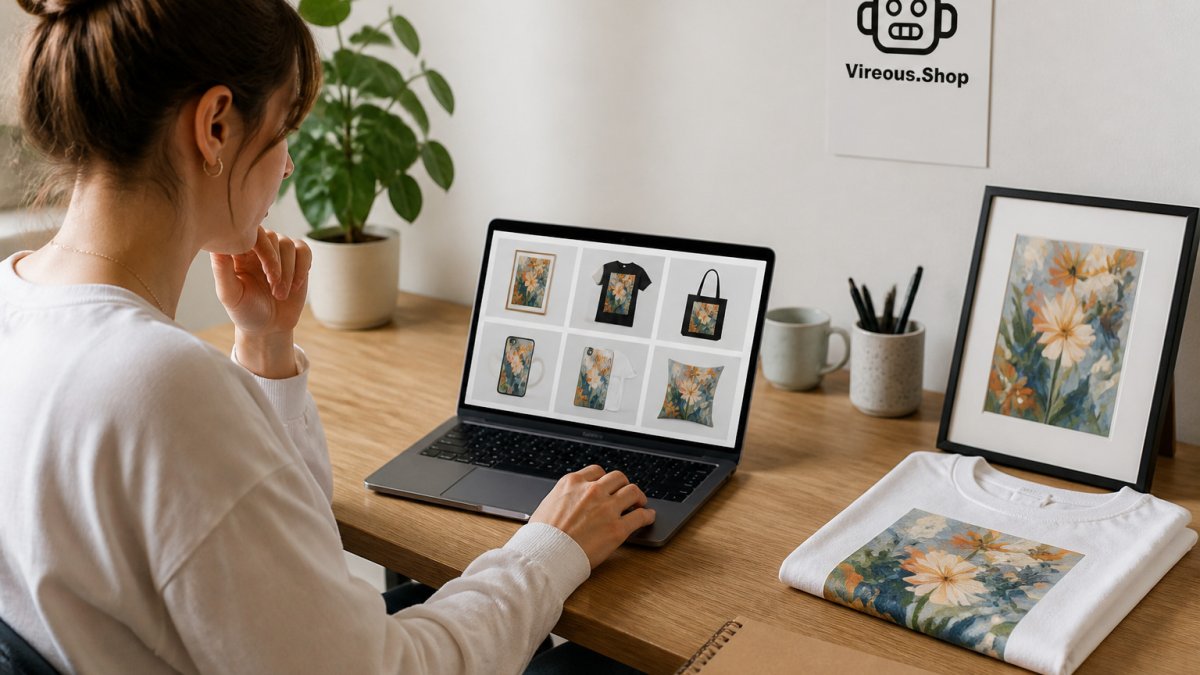
Review each generated image beside the physical product before publishing. Check colour, texture, and proportions.
For a concrete example of how AI-designed artwork is shown as a finished, framed product, see our oversized canvas art guide for living rooms. A reader can also see a framed AI-designed poster to compare how a print looks in a real frame.
Choosing AI Tools for Small Business Marketing Without Overspending
Tool selection is where small design budgets quietly leak. The goal is not the biggest stack; it is the smallest stack that clears your audit bottlenecks. Treat every subscription as a hypothesis you must test against one real task before you pay for it.
Start With a Needs Map, Not a Tool List
Go back to the task audit from the first section and sort each recurring design task into three buckets:
- Generate, tasks that start from a blank canvas (social graphics, concept variations, background swaps)
- Edit, tasks that refine an existing asset (cropping, upscaling, background removal, text cleanup)
- Organize, tasks that route, name, approve, or archive files
Most small teams need one generator, one editor, and one lightweight organizer (often a shared drive plus a spreadsheet). A low-cost option for hands-on brainstorming is the Glorence creativity tool kit, which can complement digital tools without adding a subscription. If a tool does not map to a bucket with a named task and owner, it is a distraction.
The Five Criteria That Actually Matter
When comparing tools, score each one against the same five criteria so the decision is defensible to a budget owner:
- Commercial usage rights, the terms must state clearly that outputs can be used in paid marketing, product listings, and print. Look for language about commercial use, derivative works, and whether attribution is required.
- Export formats and resolution, your sales channels dictate this. Marketplace listings, print-on-demand, and email headers each have different size and resolution needs. Confirm the tool exports at the resolution your channel requires before you commit.
- Batch and repeatability, can you save a prompt, reuse a style, and generate a set of variations in one pass? Batch capability is the difference between a novelty and a workflow.
- Team access without seat inflation, small teams get punished by per-seat pricing. Favor tools that let a reviewer view or approve without a full paid seat.
- Data handling and retention, read the vendor's policy on whether your uploads and prompts are used to train models, how long they are retained, and whether you can opt out. This matters most when client photos or unreleased products are in the frame.
A Realistic Low-Cost Path
A workable pattern for small design teams is a staged setup:
- Free tier first, run one real task end to end on the free plan. Track usable outputs per hour and the number of manual fixes per image. If the free tier clears the task, stop there.
- Single paid seat, when the free tier caps generation or blocks commercial use, upgrade one seat for the person who runs the workflow, not the whole team.
- Add-ons only on proven bottlenecks, add an editing or upscaling tool only when a specific task keeps stalling in review.
Do not price tools in isolation. Price them against the hours the task currently consumes. If a tool saves a measurable number of hours per month on a task you have already timed, the subscription is easy to justify. If you cannot name the hours saved, you are guessing.
Integration With What You Already Use
Before adding a new tool, check whether it connects to the software your team already opens every day, your file storage, your scheduling tool, your listing dashboard. A tool that requires manual export and re-upload at every step adds a hidden labor cost that rarely shows up in the subscription price. Seamless integration remains the primary filter for selecting AI marketing tools that actually scale alongside your evolving operational requirements.
Create Your Own Design All-Over Print Crop Women's T-Shirt →
When to Walk Away
Walk away from a tool if any of these are true: the commercial rights are ambiguous, the export resolution does not meet your channel requirements, the vendor's data policy does not let you opt out of training, or the free tier cannot complete a single real task from your audit.
vendor terms of service and data policy pages
Before committing to any tool, score each candidate against the same five criteria, as summarised below.
| Criterion | What to check | Why it matters |
|---|---|---|
| Commercial usage rights | Terms state use in paid marketing, listings and print | Ambiguous rights create legal risk |
| Export formats and resolution | Matches your channel's size and resolution needs | Wrong exports fail marketplace or print specs |
| Batch and repeatability | Save prompts, reuse styles, generate variations | Separates a workflow from a novelty |
| Team access without seat inflation | Reviewers can approve without a full paid seat | Per-seat pricing penalises small teams |
| Data handling and retention | Training use, retention period and opt-out | Matters when client or unreleased products appear |
Adding Human Review, Brand Checks and Quality Recovery Steps
Human review is not a courtesy step at the end; it is the control system that keeps AI design work from reaching customers in a broken state. The strongest small-business workflows treat review as a gate with defined pass/fail criteria, a named owner, and a recovery path when something fails.
Build a Review Gate With Pass/Fail Criteria
A review checklist only works if every item is a yes/no question. Vague instructions like "check brand fit" get skipped under deadline pressure. Use specific gates:
- Accuracy, does the image match the real product in color, texture, proportion, and included accessories?
- Text integrity, is all lettering spelled correctly, with no garbled or invented characters?
- Visual defects, are there extra fingers, merged limbs, warped edges, duplicated objects, or impossible reflections?
A single failed gate sends the asset back to the prompt stage, not to the publish queue. Record which gate failed so you can fix the template rather than the individual image.
Test Outputs Before You Trust a Template
Before a prompt template goes into production, run it against a small test set, three to five different items or briefs, and score each output against the review gates. A template that passes on one item and fails on three is not ready. Keep a short test log with the template version, the test items, and the pass rate. When you change the template, re-run the test set.
Handle Exceptions and Route Uncertainty to a Person
Not every output should be auto-approved or auto-rejected. Define an exception path for the cases in between:
- Low-confidence outputs, if a reviewer is unsure whether an image is accurate, it goes to a second reviewer or back to the prompt stage. It does not get published on a maybe.
- Sensitive content, anything with a person, a trademark, a client logo, or a recognizable location requires explicit sign-off before publishing.
- Client-supplied assets, when a client provides reference photos or brand files, confirm in writing what the client permits you to generate and where the outputs may be used.
A common pattern is a two-tier review: a fast pass for routine social graphics and a slower, documented pass for product listings, print assets, and anything client-facing.
Prevent Incorrect Automated Actions
If your workflow includes any automation beyond generation, auto-publishing, auto-tagging, auto-sending to a printer, add a human confirmation step before the action fires. The cheapest safeguard is a staging folder or draft queue where generated assets sit until a named person approves them. Never let an AI tool publish directly to a customer-facing channel without a human gate.
Plan for Failure Recovery
Failures are normal; unlogged failures are expensive. When an image fails review, log four things: the template version, the failure gate, the prompt used, and the fix applied. Review the log weekly.
Keep a small library of known-good reference outputs so reviewers can compare a new draft against a proven baseline. This shortens review time and makes the pass/fail call less subjective.
Protect Client Data and Intellectual Property
Before uploading any client photo, unreleased product, or brand asset to an AI tool, confirm three things: the vendor's policy on training and retention, whether you can opt out, and what rights you and the client hold in the outputs. For client work, put the AI usage terms in the project agreement, which tools are used, what data is uploaded, and who owns the generated assets. Retain source files and prompt logs so you can prove provenance if a rights question arises later.
Launching Your First AI Design Workflow This Week
Start small. Pick one repeated task from your audit, usually social posts or product listing images, and run it through the full workflow once. Time each stage and note every point where the output needed fixing.
By the end of the week you should have one working prompt template, one review checklist, and a rough measure of hours saved. Use those results to decide which task to automate next.
Repeat the cycle every month.
Frequently Asked Questions
How can a small business use AI for design?
Small businesses use AI for design by turning repetitive graphic tasks into a repeatable workflow. Start with one output type, such as social graphics or product mockups, write a prompt template for it, generate several options, then have a person check brand fit and text accuracy before publishing. Tools such as the DALL-E integration on Vireous.Shop can generate custom artwork from natural language prompts, while your team keeps control over which designs go live.
What should you check before publishing an AI-generated design?
Before publishing, check that the design matches your brand colors and tone, that any text in the image is spelled correctly, and that no logos, faces or styles raise intellectual property concerns. Compare the design against the reference you wrote in your prompt template, and confirm the output size matches the channel. For product items, preview the exact print area before ordering so the file you approve is the one you receive.
How do you combine AI design tools with human review?
Assign one person to own final approval and keep a short checklist: brand fit, accuracy, accessibility of text contrast and a usage-rights check. Let the AI generate several variations so the reviewer chooses rather than edits from scratch. Log any rejected output and the reason, then adjust the prompt template so the same problem does not repeat in the next batch.
Can AI help create product images and promotional materials?
Yes. AI can produce lifestyle backdrops, concept art and promotional visuals for products such as canvas prints or custom apparel. Use it to explore themes quickly, then confirm the final product image shows the real item in its true color and size. Vireous.Shop's Create Your Own All-Over Print Crop Women's T-Shirt, priced at $27.50, is one example of a product where the design preview should be checked against the printed result before you publish.
