

Quick Summary
To improve ai design prompt accuracy, name three things: the subject with its key details, the style such as an artist or medium, and the output format or use. Then add context, constraints, and reference inputs. Reuse a fixed template each time, and keep exclusions short and specific.
- Vague prompts force the model to guess, so name the subject, style, and output format.
- Add context, colors to use or avoid, mood, and required or absent elements.
- Attach a reference image and state what to keep from it.
- Use a reusable template covering subject, style, palette, mood, composition, use, and avoid.
- Keep three to five targeted negative prompts rather than a long vague list.
Table of Contents
- Why Your AI Design Prompts Miss the Mark
- Step 1: Specify the Subject, Style, and Output Format
- AI Design Prompt Examples: Vague Versus Precise
- Step 2: Add Context, Constraints, and Reference Inputs
- AI Image Prompt Template You Can Reuse
- Negative Prompts for AI Art: What to Exclude and Why
- Keeping AI-Generated Design Consistency Across a Collection
- Start Your Next Design Prompt on Vireous.Shop
- Frequently Asked Questions
Why Your AI Design Prompts Miss the Mark
Last Updated: October 29, 2026
Most people type a short sentence into an AI tool and wait. The result looks close, but not quite right. The problem is rarely the tool. Vague prompts leave the model guessing about subject, style, and layout, and it fills those gaps with its own choices. The fix is almost always the prompt, not the printer.
A prompt is an instruction. The clearer it is, the less the model has to invent. Accuracy here simply means the output matches the picture in your head. Several steps below will show you how to close that gap, starting with the basics.
- Vague prompts force the model to guess
- Specific prompts narrow the possible results
- Each added detail reduces surprises in the final image
Step 1: Specify the Subject, Style, and Output Format
Start by naming three things: what is in the image, how it should look, and what format you need. Treat these as the core of any AI design prompt.
Subject: Name the main thing and its key details. "A girl with a capybara" is a start. "A girl sitting beside a capybara on a wooden porch" is better.
Style: Name an artist, movement, or medium. "In the style of a Frida Kahlo painting" gives the model a clear visual target.
Output format: State the use. "Square composition for a 16x16 inch canvas print" tells the model how to frame the image.
AI Design Prompt Examples: Vague Versus Precise
One comparison is not enough to build a habit. Below are three annotated pairs, an interface, a user flow, and a visual concept, each showing the weak version, the improved version, and the specific mechanism that closed the gap. The point is not to copy the wording but to see which prompt elements transfer across tools and which depend on the output type.
Interface: a settings screen
Vague: "A settings page for a fitness app."
Improved: "Mobile settings screen for a fitness app, iOS-style, grouped list layout with section headers for Account, Notifications, and Privacy, 16px body text, 44px minimum tap targets, light mode with a single accent color, no illustrations, portrait orientation."
What changed: The improved version names the platform convention (iOS grouped list), the information architecture (three named sections), measurable constraints (16px text, 44px tap targets), and exclusions (no illustrations). Those are the elements that transfer to any UI model: structure, measurements, and exclusions.
User flow: onboarding
Vague: "An onboarding flow."
Improved: "Three-screen onboarding flow for a budgeting app: screen one asks for monthly income with a numeric input, screen two asks for savings goal with preset chips, screen three shows a summary card with a 'Get started' button. Each screen has a progress indicator at the top and a single primary action at the bottom. Describe each screen's layout and the transition between them."
What changed: The improved version specifies screen count, the input type on each screen, the navigation pattern, and the transition. Flow prompts fail most often because they describe a vibe rather than a sequence, naming the screens and their order is the mechanism that fixes it.
Visual concept: a poster
Vague: "A cool room poster with robots."
Precise: "Flat illustration of three friendly robots and two humans painting a mural together, warm palette of ochre and teal, in the style of L.S. Lowry, portrait orientation for a wall poster."
What changed: The precise version names the subject count, the relationship between subjects, the palette, the artist reference, and the orientation. The vague version leaves all five open.
Which elements transfer, and which do not
- Transfer across image, UI, and text-based design models: subject and count, named style or convention, palette, orientation, explicit exclusions, and output use.
- Depend on the output type: measurements and tap targets (UI only), screen sequence and transitions (flow only), artist and medium references (image only).
Most of the gap between a disappointing result and a useful one comes from these details, and from knowing which details to reuse and which to rewrite for each new output type.
Step 2: Add Context, Constraints, and Reference Inputs
Once subject, style, and format are set, add context. Context explains the purpose of the image, the audience, and the setting where it will hang or appear.
Useful constraints include:
- Colors to use or avoid
- Mood, such as calm, playful, or bold
- Elements that must be present or absent
- Level of detail, such as minimal or dense
If you have a reference image, attach it and say what to keep from it. For example: "Keep the composition of the reference, but change the color palette to muted blues." Reference inputs often produce more accurate results than long text descriptions alone.
Context also helps you avoid mismatches. A prompt for a home office wall should describe calm, low-contrast imagery. A prompt for a social media merch line may call for higher contrast and bolder shapes.
Create Your Own AI-Generated Canvas Art Print-Choose From Six Sizes-Import From →
AI Image Prompt Template You Can Reuse
Use this structure every time. Fill in the brackets and keep the order.
Subject: [who or what, with key details] Action or setting: [what is happening and where] Style: [artist, movement, or medium] Palette: [three to four colors] Mood: [one or two words] Composition: [orientation, framing, focal point] Use: [canvas, poster, apparel, size] Avoid: [elements to exclude]
A filled-in example:
Subject: Two foxes reading a map on a hillside Action or setting: Early morning, open meadow, distant pine forest Style: Mid-century travel poster Palette: Burnt orange, sage green, cream Mood: Calm, adventurous Composition: Landscape orientation, foxes in the lower third Use: Framed canvas print, 18x24 inches Avoid: Text, logos, human figures
Save this template in a notes file and copy it each time you start a new design.
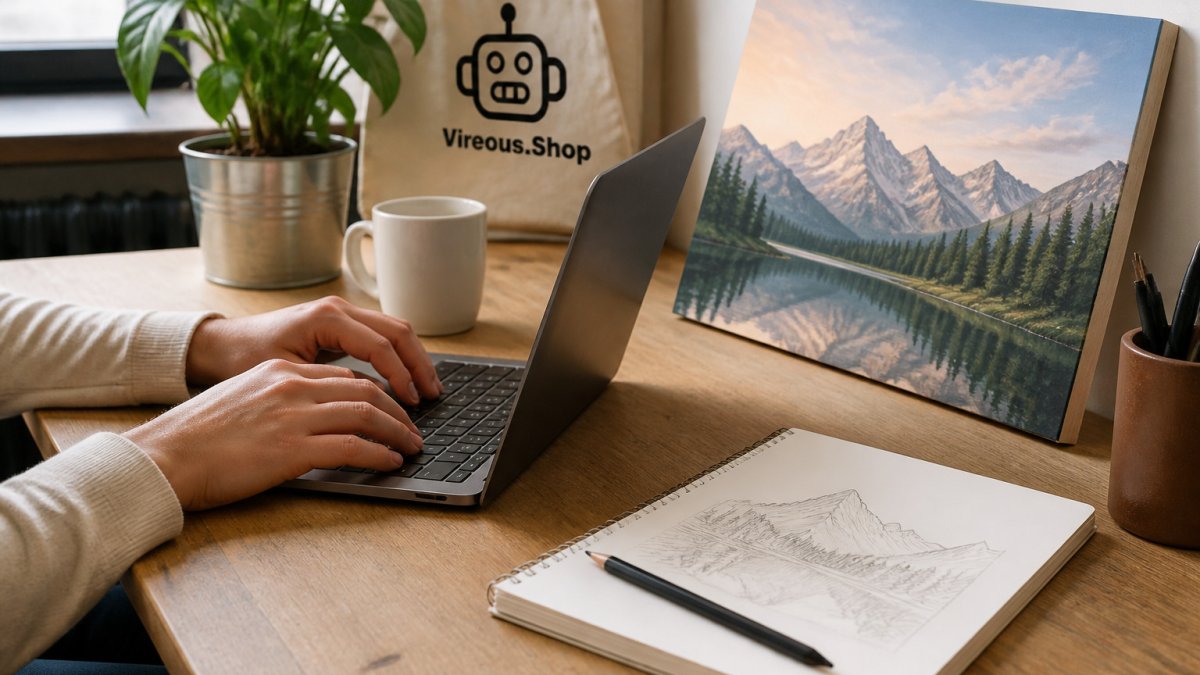
!Hands typing a detailed prompt into a laptop at a desk beside a sketchbook, with a printed canvas art proof leaning against the wall nearby
Negative Prompts for AI Art: What to Exclude and Why
Negative prompts tell the model what to leave out. They matter most when a model keeps adding elements you did not want, such as extra fingers, watermarks, or unwanted text.
Common exclusions for wall art include:
- Text or lettering, unless you want it
- Watermarks and signatures
- Busy backgrounds that compete with the subject
- Distorted faces or hands
- Color tones that clash with your room
Keep exclusions short and specific. A long list of negatives can confuse the model. Three to five targeted items usually works better than twenty vague ones. If the output keeps adding something, add that item to the exclusion list in the next attempt.
Keeping AI-Generated Design Consistency Across a Collection
Consistency across a series is not a matter of luck or a single lucky seed. It is a versioning problem. Treat each prompt as a controlled experiment: change one variable at a time, score the output against fixed criteria, and keep the version that scores highest. This is the workflow most prompt guides skip, and it is the one that separates a coherent collection from a pile of near-misses.
Fix the invariants, vary the variable
Before you generate anything, write down the invariants, the settings that must not change across the collection:
- Style reference, the same artist, movement, or medium phrase, worded identically every time
- Palette, the same three to four named colors, in the same order
- Composition rules, the same orientation, focal-point placement, and framing language
- Output format, the same aspect ratio and target size
- Negative list, the same exclusions, copied verbatim
Change exactly one thing per iteration: the subject. If you change the palette and the subject in the same pass, you cannot tell which change caused a drift.
A repeatable accuracy score for design outputs
Accuracy means the output matches the brief. Score every generation on a simple 1-5 scale across five criteria, then total it out of 25:
| Criterion | What you are checking | Score (1-5) |
|---|---|---|
| Requirement coverage | Every named element in the brief appears | |
| Style fidelity | The style reference reads as intended, not as a generic imitation | |
| Palette match | The named colors dominate; no stray hues | |
| Composition | Orientation, focal point, and framing match the spec | |
| Collection consistency | Side-by-side with the anchor piece, it looks like the same body of work |
A common pattern is to accept anything scoring 20 or above and re-prompt anything below 15. The middle band is where you make a judgment call: tighten the weakest criterion and regenerate once before deciding.
Version and preserve
Save every prompt that scores well, with a short label and the score. A simple notes file works:
v3, Foxes / meadow / Lowry / burnt-orange-sage-cream, 22/25 v4, Foxes / meadow / Lowry / burnt-orange-sage-cream + 'no text', 24/25
When a later piece drifts, you compare it against the highest-scoring anchor, not against your memory. If the colors shift, check whether the palette line was edited. If the layout changes without reason, check the composition line. The version log tells you which variable moved.
Test each new design against the anchor. If the colors drift or the layout changes without reason, tighten the template, change one variable, and try again.
Start Your Next Design Prompt on Vireous.Shop
Accurate prompts are the foundation of good AI-generated art. Once your prompt produces the image you want, you can turn it into a finished piece. Create your own AI-generated canvas art print at Vireous.Shop, choose from six sizes, and import artwork generated with OpenAI's DALL-E 3 integration. Start with the template above, refine your prompt using the steps in this guide, and customize your piece today.

Frequently Asked Questions
How do you write an accurate AI design prompt?
Start with the subject, then name the visual style, color palette, composition, and intended use of the design. Keep each detail in a separate phrase so the image model can weigh it. Avoid vague words like nice or modern on their own and replace them with concrete descriptions such as flat vector shapes, muted earth tones, or a centered single subject. Generate a result, compare it against your brief, and change one variable at a time so you can see which edit actually improved the output.
How long should an AI design prompt be?
Most useful prompts run between one and three sentences, or roughly 25 to 80 words. Shorter prompts leave the model guessing about style and framing, while very long prompts can bury the most important instructions. Put the subject first, then the style and constraints. If a detail does not change the final image, cut it. Test the shorter version first and add back only the specifics that the output clearly needs.
Should I use negative prompts for AI design?
Yes, when a recurring problem keeps appearing in your outputs. Negative prompts tell the model what to leave out, such as extra text, watermarks, distorted hands, or cluttered backgrounds. Keep the list short and specific, because a long list of exclusions can confuse the model. Add one exclusion at a time after you see a real issue, and remove any exclusion that is no longer needed.
How can I get more consistent results from an AI design tool?
Reuse the same prompt template and change only the variable you are testing, such as the subject or the color palette. Keep the style description, lighting, and framing words identical across a set of designs. Save the seed or reference image when the tool offers one, and note which phrasing produced the strongest result so you can repeat it. Consistency comes from a stable template more than from rewriting each prompt from scratch.
